The touch is not working at some particular areas of the display. and also it is behaving erratic manner, opening , closing , switching apps and typing randomly on its own..sometimes the home button also stops working...
ehtisham123 Posted in Apple Support Community
The problem started with "ghost typing" and auto switching of the apps. and recently the touch at some areas on the display also stopped working..
An iPad is akin to a smartphone but with a wider screen, the same portability, and, at times, just as powerful as a modern laptop.
Like phones, iPads also boast touch-screen functionality, and most new iPads respond well to screen touches across every area of the display.
However, it's a common issue for older iPads to suddenly develop unresponsive screens, rendering them unusable when they freeze during a specific app or task.
This guide will delve into the reasons why your iPad's touch screen may not work in certain areas and provide solutions for fixing it.
Continue reading to learn more.
One potential cause could be exposure to extreme temperature conditions. If your iPad has been subjected to extremely hot or cold environments, it may significantly impact the device's overall performance, including the touch screen function.
Some screen protectors you are using might affect the iPad's touch sensitivity. Furthermor, you should ensure that your screen is clean and free of any debris or water to maintain optimal performance.
Occasionally, a malfunctioning app or software bug may be responsible for touch screen issues. It's also possible that a system issue is affecting one of your iPad's background functions, resulting in touch screen problems.
In rare cases, faulty touch screen hardware may be the issue, which may require a technician to investigate.
It's time to look more closely at the possible causes of your problem, as well as what you can do to fix them.
As mentioned earlier, your iPad's screen can be sensitive to certain temperatures. If it was exposed to extremely hot or cold surroundings, your iPad might start to malfunction, with the screen being one of the most affected components.
Simply wait for your iPad to return to its optimal temperature, and then check if the touch screen feature works better.
Additionally, ensure that your screen is clean and free of any debris or water. Remove any cases or screen protectors and try again.
If you're at work or outside wearing gloves, using your iPad may be challenging as its touch screen function works best with bare hands. Try removing your gloves and see if the screen responds better.
Next, ensure that your iPad's screen is clean and dry. When cleaning, use a microfiber towel and apply a decent amount of pressure while wiping.
If you need to add moisture, make sure to use a non-aggressive solvent like water. Apply a small amount to the towel, just enough to make it damp. Then, wipe it dry until all moisture has evaporated. Wet spots on your screen can confuse the touch screen function, making it difficult to use.
For older iPads, the screen protector may have worn out, causing more harm than good in protecting your screen. Try removing it and see if your iPad responds better. Additionally, remember to clean some parts of the screen before using your iPad again.
Should the screen start working once you've removed an accessory, consider experimenting with alternative outlets, cables, or chargers to identify and rectify the issue.
This troubleshooting step will help pinpoint whether the problem lies with a specific accessory or if it extends to broader issues related to charging, connectivity, or power supply.
If you suspect that the issue is caused by system glitches, consider implementing the following troubleshooting tips to address and resolve the problem:
If your iPad has an enabled 3D Touch feature, you can configure its sensitivity and check if the touch screen responds well with swipes and taps.
To adjust the 3D Touch sensitivity, go to Settings > General > Accessibility > 3D Touch. Adjust the slider and check if it makes the iPad's screen more responsive.
Restarting an iPad:
Restarting is a quick fix to most bugs and glitches on your iPad. To restart your iPad, press the Home and Power buttons simultaneously for ten seconds. Wait for the iPad to restart and see if the touch screen issue is fixed.
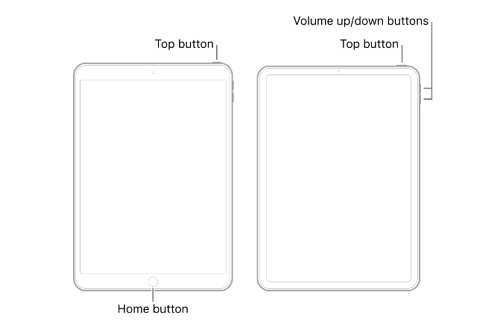
Another method that you can try is force restarting your iPad. This will solve many of your iPad's bugs, including an unresponsive screen. Depending if your iPad has a Home button or not, you can do a force restart by following these steps:
Force restarting an iPad without a Home button:
Force Restarting an iPad With a Home Button:
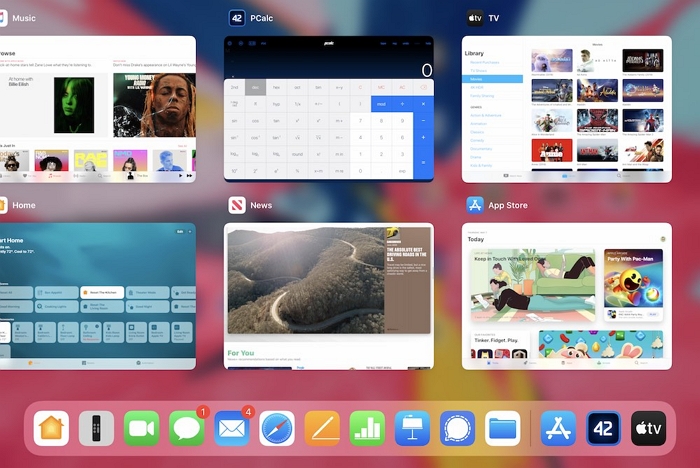
Close any unnecessary or background apps running on your iPad. Too many open applications can strain the system resources and lead to touchscreen problems.
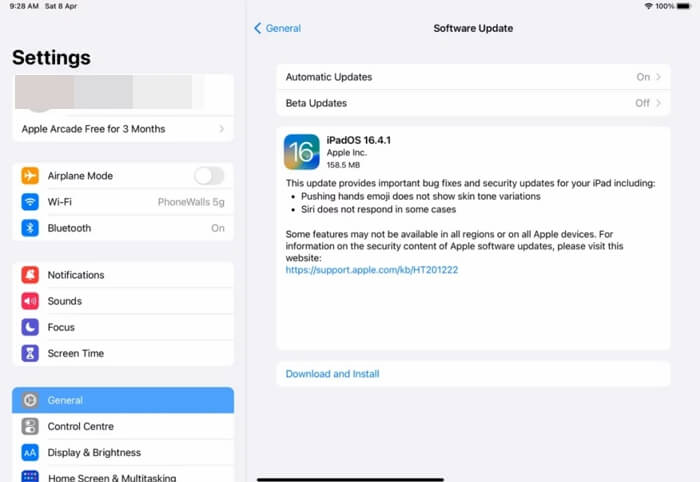
Software updates sometimes contain the necessary fixes for your iPad's bugs and glitches. To check for a software update, follow the process below:
Despite all of these tips, if you're still struggling to use your iPad due to its unresponsive screen, you can try to use a third-party software.
AceFix iOS System repair is a trusted tool that can possibly solve your iPad's touch screen issue without losing any of its important data.
Although it only indicates iOS on the app name, it supports all models of the iPad and iPod Touch and solves most of their OS problems.
To download and use AceFix iOS System Repair, follow these steps:
If none of the previously mentioned solutions proves effective, it's advisable to explore potential hardware issues affecting your iPad. These issues may stem from various factors, including:
If your iPad's screen underwent recent repairs or replacement, there's a possibility that the work was not executed correctly. Depending on whether the repair was conducted at an authorized Apple repair center, the screen may be of substandard quality or incompatible.
Opting for official services, even if they incur slightly higher costs, is recommended to avoid potential issues. Engaging a third-party service center for iPad repairs may instantaneously void its warranty.
The touchscreen is connected to the iPad's motherboard via a flex cable. If this cable becomes loose or damaged, it can result in touchscreen problems.
Cracks or damage to your iPad's screen can impede the touchscreen's proper functionality. The touchscreen itself might be faulty, whether due to a manufacturing defect or damage caused by exposure to water or other liquids.
Your iPad's touch screen functionality is one of its most crucial features. A well-functioning screen allows you to perform various tasks quickly. However, touch screen issues can arise, especially if you've owned and used it for a few years.
This guide aims to assist you in resolving issues with your iPad's touch screen when it's not working in specific areas. If simple fixes prove ineffective, consider using AceFix iOS System Repair to address the problem. In the event of continued issues, you may need to send your iPad to a service center.


 AceFix - iOS System Repair