If you've been using your iPad for a while now, you might be familiar with various iPadOS updates, including the latest iPadOS 17. Similar to other Apple devices, a software update will contain several upgrades to improve your user experience.
As long as you bought your iPad within the last four to five years, it will still receive the latest iPadOS updates. However, problems can also occur when updating your iPad. It can be quite tricky to solve since faulty or incomplete updates can lead to more device issues.
In this guide, we'll show you the common reasons why your iPadOS updates can take a long time than expected and what you can do when the iPad update gets stuck.
The time it takes to update your iPad's software varies depending on the file size. Larger software updates can take more time than smaller and more minor updates.
For example, if you are updating the device to a new version, such as from iPadOOS 16 to iPadOOS 17, then you can expect the update to take longer than if you were updating to a point release, like iPadOOS 17 to iPadOOS 17.1.
In general, the total update time takes between 16 to 60 minutes (average 30 minutes). When your iPad undergoes an update, your device displays the Apple logo and a progress bar underneath.
Although the entire update process is designed to run smoothly and take as little time as possible, sometimes, for various reasons, an iOS update can take longer than expected.
To check if the update is stuck or unresponsive, press any of the device's buttons. An update message will appear, indicating that the update is still in progress.
If you are experiencing an iPadOS update stuck, some of the common causes can include any of the following:
Keep in mind that your device has to download the update files from Apple servers and then install them, a process that can take quite a while.
Apple states that the update process, depending on factors such as the Wi-Fi connection, can take up to an hour or sometimes even longer.
It's important to be patient during this step and give your device some time to complete the process. Once it is ready, you can proceed to install the software update on your iPad.
Your iPad will also need to have at least 50% battery life to ensure that the update process will not stall if the battery dies.
Large updates can consume a significant amount of your iPad's stored power, potentially causing the update to get stuck. Therefore, keeping your iPad charged during a software update is a great solution.
To check if the iPadOS update is still ongoing, press one of the buttons on your iPad—it should display an updating message.
You can also assist the update process by ensuring that the device is connected to a strong and reliable Wi-Fi network.
Keep in mind that you can only update your device using Wi-Fi; cellular data connections will not work. This limitation is in place to prevent your device from downloading and installing a corrupt update file, which could lead to a stuck issue.
When downloading iPadOS updates, we strongly recommend using a robust Wi-Fi connection. If the network becomes stuck, try switching to another Wi-Fi network.
If you're tired of waiting, you can try force restarting your iPad to cancel the stuck iPadOS update.
To force restart your iPad with home button:

To force restart your iPad without home button:

After the iPad reboots, remove the current update file and redownload a new one to update your iPad once again. To do this, follow these steps:
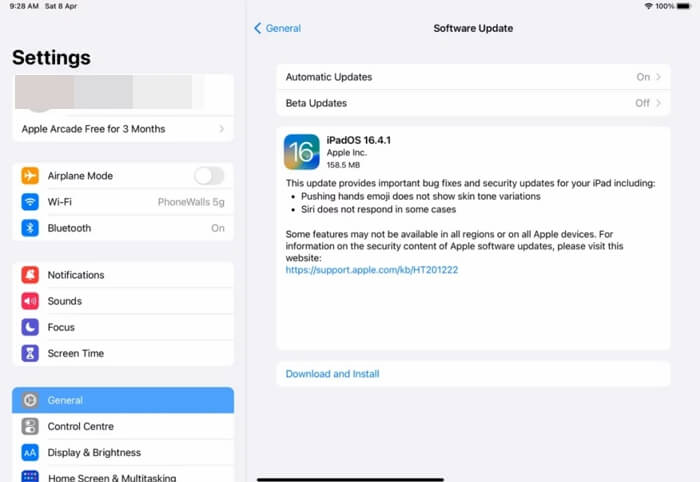
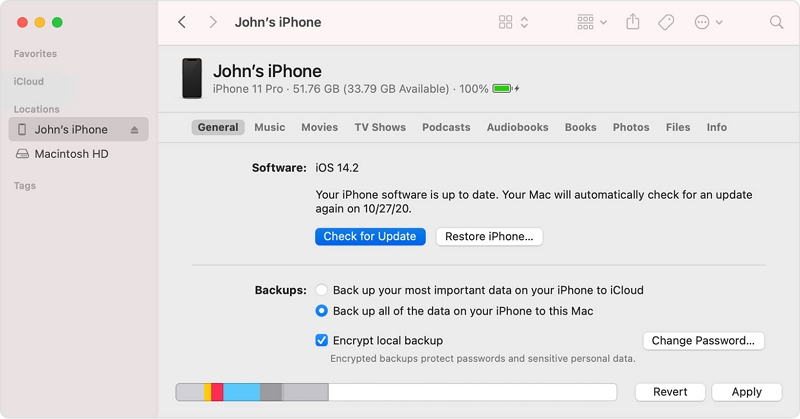
After force restarting your iPad, if it successfully restarts, to prevent the iPad update from getting stuck again, you can also use iTunes or Finder to update your iPad instead.
To update your iPad using iTunes, follow these steps:
To update the iPad in Finder, proceed to the steps below:
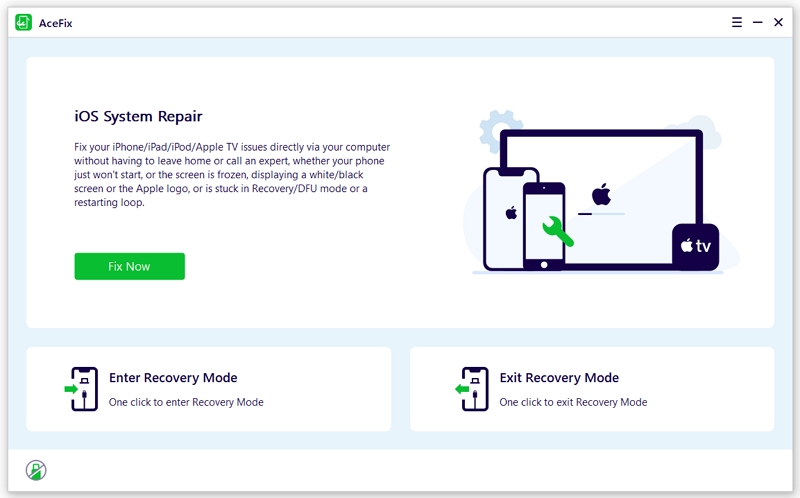
If the methods above didn't work, one solution that you should try is installing an iPhone and iPad system recovery tool like AceFixto fix the stuck issue on your iPad.
Besides a high success rate in fixing most issues on Apple devices, here are more advantages when using AceFix to solve the update stuck issue:
To use AceFix on your device, follow the steps below:
If none of the solutions worked, we strongly advise reach out to Apple Support and seek assistance from Apple experts, who can provide more extensive support.
One of the best features of all Apple devices is continuous software updates. It integrates new features and fixes most problems from the previous updates.
When you run into some issues, such as getting stuck at a screen or an error when installing new iPadOS updates, there are simple troubleshooting steps that you can do yourself.


 AceFix - iOS System Repair