I was charging my phone using my computer and all of a sudden my iPhone got stuck on "Allow this device to access photos and videos" no matter what I try to do it's still stuck on that screen. I tried all those tricks to force the phone to power off, but nothing worked as the screen is completely frozen so naturally I can't access anything on it. I clicked 'Do not allow' a thousand times and it doesn't work.
——Posted by strawberriesokay04 in Reddit
Have you connected your iPhone to my computer for charging, only to encounter an issue where the device is now consistently displaying the "Allow this device to access photos and videos" prompt? Despite attempting various solutions, the problem persists. This article outlines effective steps to permanently resolve this issue.
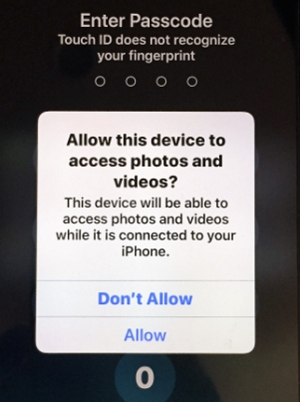
If your iPhone encounters a frozen screen, unresponsiveness to touch, or gets stuck during startup, Apple suggests performing a force restart.
Rest assured, force restarting your iPhone is a safe procedure and won't cause any harm. However, it's important to note that if you were in the midst of a project, this action is likely to result in the loss of any unsaved data.
So your first resort will be to force-restart your iPhone. Based on your iPhone model, you can force-restart in the following way:
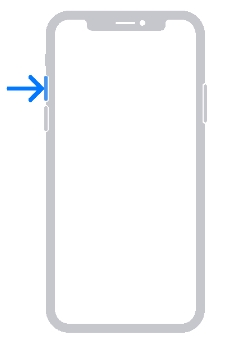


If your phone won't turn on or work properly after the force-restart, it is time to move on to the next step.
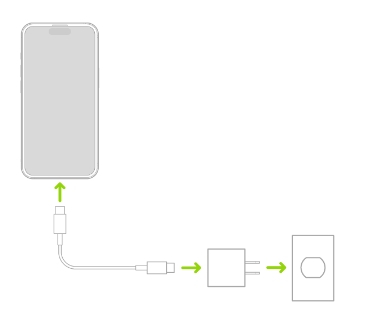
If your iPhone doesn't turn on even after force restarting it, charge your iPhone for one hour, and then try force restarting it again.
Plug your phone into a power outlet or a computer through a USB port, but avoid charging it wirelessly. If your iPhone shows a low-charge battery, check your USB port, USB cable, or the hardware of your device and try again.
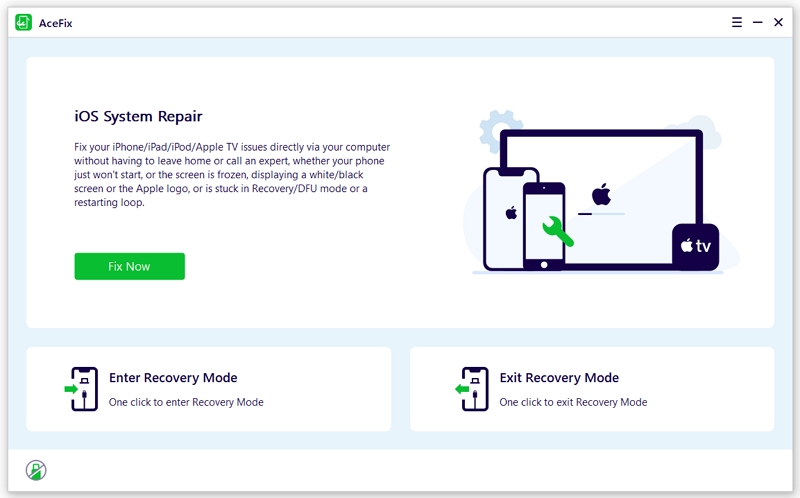
If none of the above solutions work and your device remains stuck on "Allow this device to access photos and videos," we highly recommend using the iOS system repair tool, such as AceFix, to address the issue of an iPhone stuck on the 'Allow This Device' screen.
This tool can resolve common iPhone issues within a few minutes without affecting your phone's data, in just a few easy steps. It is also effective in solving other common problems, such as iPhones getting stuck on the Apple logo or Home screen.
Regardless of the issue with your iPhone, consider giving this tool a try by connecting your phone to the computer.
Step 1. Download and install the program on your computer and launch it
Step 2. Select 'iOS System Repair' and choose 'Standard Mode' to initiate the repair process.
Step 3. On the next screen, click on 'download' to start downloading the firmware package which will fix your phone.
Step 4. Once the package download is done, click on the 'Fix Now' prompt. Keep the phone connected to the computer through the entire process. The program will update you once the repair is complete.
If you prefer not to use the iOS system repair tool, an alternative solution is to manually update or restore your device in Recovery mode. Recovery mode allows you to force a restore by connecting your iPhone to a computer running iTunes (or using Finder on macOS Catalina and newer).
If your iPhone is unresponsive, experiences startup crashes, or remains stuck on the Apple logo for an extended period, entering recovery mode is essential to recover it. Here's how you can restore your device in the recovery mode:
Note: Please be aware that restoring your device in recovery mode will result in the loss of all data on your iPhone. This is not an issue if you consistently create backups for your iPhone through iCloud, iTunes or Finder.
Step 1. Connect your phone to a Mac or computer with the help of a lightning cable.
Step 2. Put your phone into recovery mode:
For iPhone 8 and later:
For iPhone 7 or 7 Plus:
For iPhone 6S or prior models:
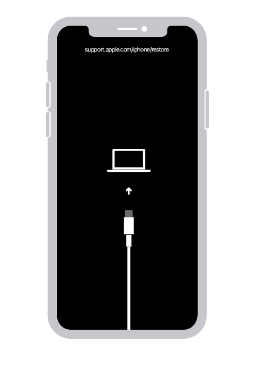
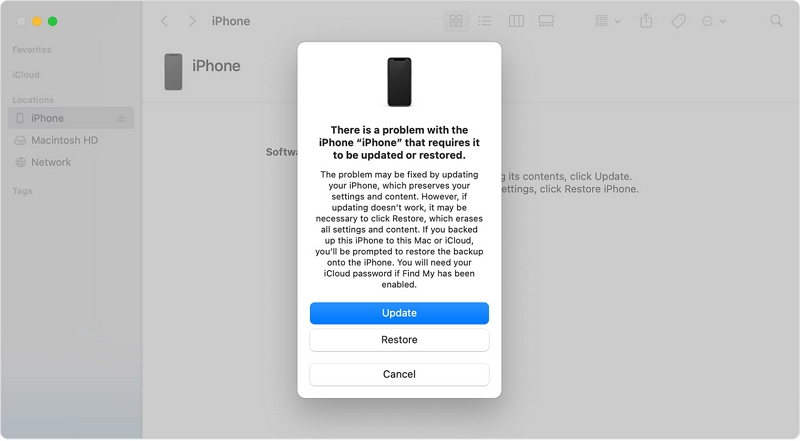
Step 3. When your device is in Recovery Mode, a iTunes or Finder prompt will appear on the computer, providing you with options to restore or update your device.
Click on "Update" to allow the computer to download and install the latest version of iOS. This option will not erase any data on the phone. After the operating system is successfully reinstalled, your iPhone should regain full responsiveness.
However, if you choose to restore the phone, you will lose all your data and everything on the phone will be erased.
Another factor leading to iPhone freezing issues can be problematic apps. In such cases, it's essential to review the installed apps and uninstall any that appear suspicious to ensure the smooth operation of your iPhone. Follow these steps:
A full storage space on your iPhone can also lead to freezing issues. Therefore, it's essential to check your phone's storage space and clear it after your device restarts.
To do this, go to Settings > General > iPhone Storage. You should see a list of applications and the amount of space they use on your phone.
Follow the instructions given on this screen to free up some storage space, or tap on each app and delete some data one by one.
Using outdated iOS software versions can at times or lead to freezing issues on your device. Consequently, Apple occasionally releases software updates aimed at resolving such problems. You can update your device by going to the Settings on your device or by connecting it to your computer.
To check if your phone is running the latest software version, go to Settings > General > Software Update and see if the phone requires a new OS update.
To update an iPhone through your computer:
For a Mac running OS Catalina 10.15 or beyond, you need to use Finder.
Glitches and frozen screens are a very common issue in iPhones, especially when you are running an outdated iOS system or using problematic apps. The steps mentioned above can safely get your phone out of the stuck Allow This Device issue and work for various iPhone-related issues. If you want to avoid going through each step and want a one-stop solution, then AceFix should be the tool of your choice.


 AceFix - iOS System Repair